

Neurodesk Copilot using Local LLMs
Neurodesk Copilot: using locally hosted LLMs inside the Neurodesk environment
Section titled “Neurodesk Copilot: using locally hosted LLMs inside the Neurodesk environment”Configuring LLM provider and models
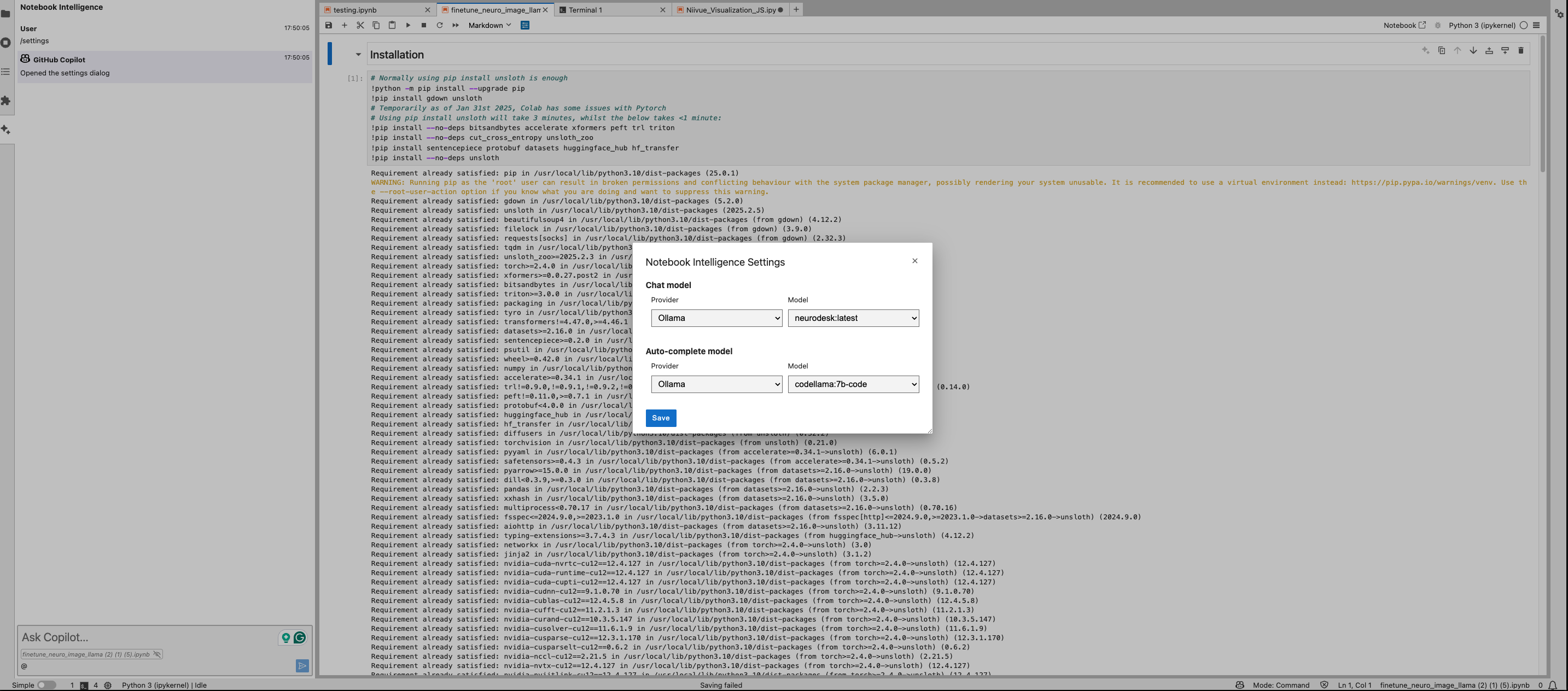
Section titled “Configuring LLM provider and models”Neurodesk Copilot allows you to harness the capabilities of local Large Language Models (LLMs) for code autocompletion and chat-based assistance, directly within your Neurodesk environment. This guide demonstrates how to configure Ollama as your local LLM provider and get started with chat and inline code completion. You can configure the model provider and model options using the Notebook Intelligence Settings dialog. You can access this dialog from the JupyterLab Settings menu, Notebook Intelligence Settings, using the /settings command in Copilot Chat, or by using the command palette.
Step 1: choose Ollama and Neurodesk Copilot
Section titled “Step 1: choose Ollama and Neurodesk Copilot”Type /settings in the chat interface and choose Ollama and the Neurodesk model, then save settings.
Step 2: use the chat interface
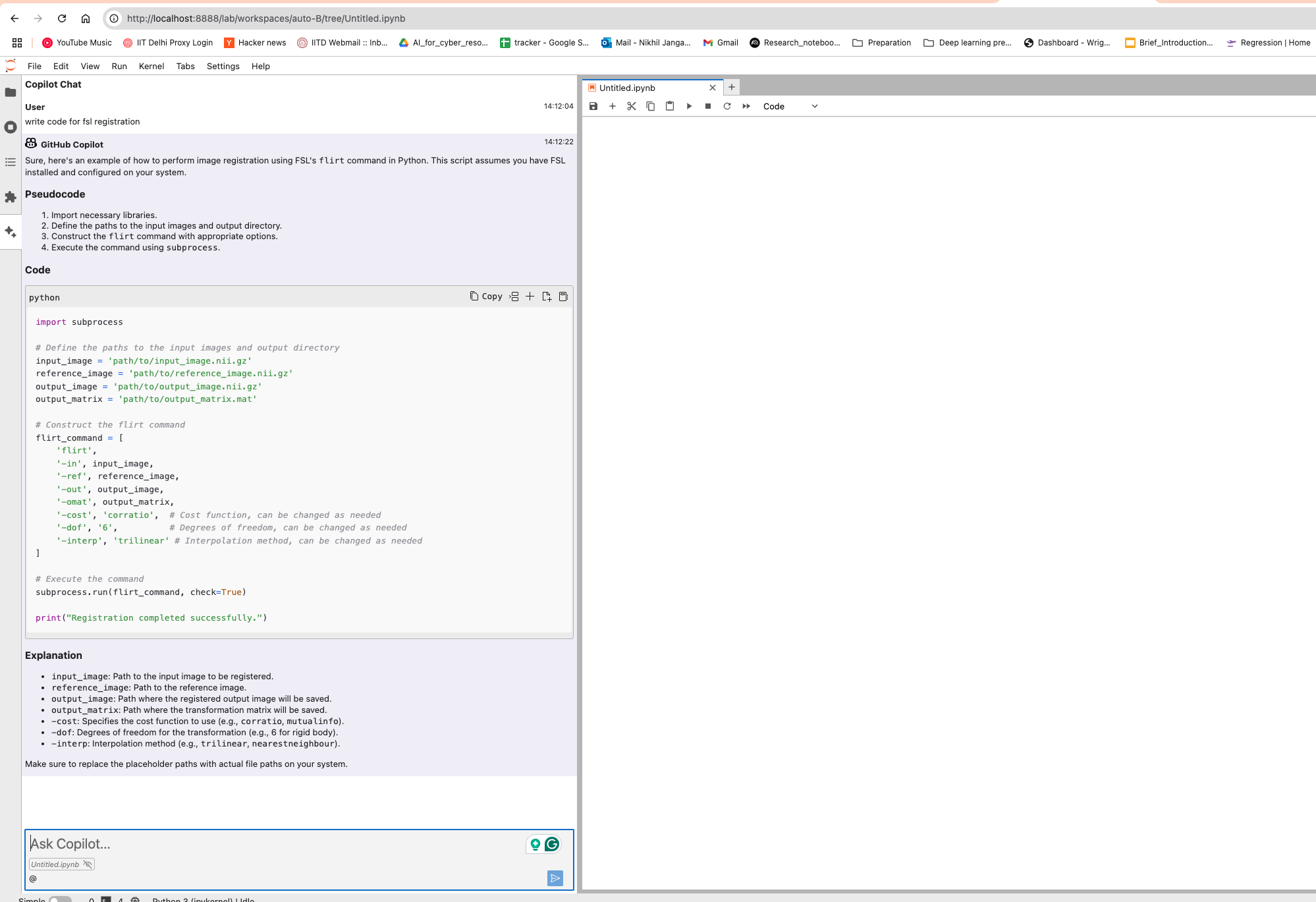
Section titled “Step 2: use the chat interface”- Open the Chat feature in Neurodesk and type your query or command. Examples:
- “Explain how to import an MRI dataset in Python.”
- “Help me debug my data-loading function.”
- Press Enter. Neurodesk Copilot will respond with explanations, tips, or suggested code.
Step 3: code completion
Section titled “Step 3: code completion”- Begin typing your code within a cell in Neurodesk. As you type, Copilot provides inline suggestions. You can accept suggestions by pressing the Tab key.
- If the suggestion isn’t relevant, continue typing or press Escape to dismiss it.
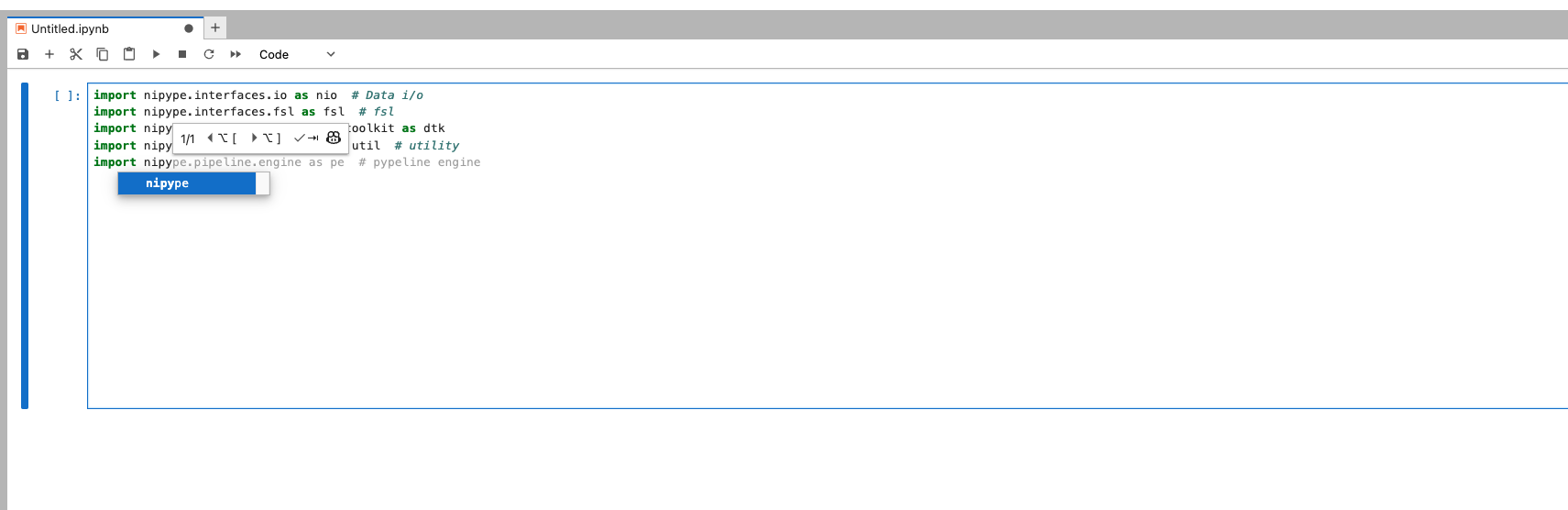
Feel free to update the settings to disable the auto completer to manual invocation in Settings, Settings Editor, Inline Completer.